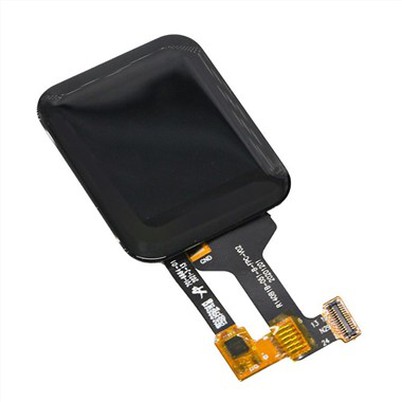
How to Maximize the Lifespan of LCD Bar-Type Displays Operating 24/7?
Leave a message
In our daily lives, numerous application scenarios require LCD bar-type displays to operate continuously, 24 hours a day. Examples include advertising screens on vending machines, notification or alert displays in hospitals, and information boards at airports. All of these demand uninterrupted operation; so, how can we ensure these LCD bar-type displays function stably and without failure for extended periods?
Core Principles: Reduce load, control temperature, regulate voltage, lock parameters, prevent dust accumulation, and ensure standardized power supply-aiming for a stable operational lifespan of 50,000+ hours.
I. Screen Selection Directly Determines Fundamental Lifespan
1. Mandatory Use of Industrial/Medical-Grade LCDs
Avoid consumer-grade screens; instead, select wide-temperature-range displays (-20°C to 70°C) featuring long-lifespan backlights and industrial-grade IC drivers.
2. Prioritize Backlight Type
Opt for Direct-Lit LED backlighting; it is more durable than Edge-Lit backlighting and less prone to developing localized yellowing or dark spots.
3. Do Not Operate at Maximum Brightness
While factory-default brightness typically ranges from 350 to 500 cd/m², setting it to a fixed level of 30%–50% for daily use is sufficient-even in indoor hospital environments, the content remains clearly legible. Furthermore, for every step the brightness is reduced, the display's lifespan effectively doubles.
II. Temperature Control (The Most Critical Factor; High Heat Is a "Screen Killer")
1. Strictly Avoid Enclosed Installations
Ensure a heat-dissipation clearance of at least 15mm on all sides (top, bottom, left, and right) of the bar-type display; do not completely encase the unit or embed it into a wall without adequate ventilation.
2. Install Supplemental Cooling
For larger or high-brightness models, utilize built-in silent, temperature-controlled fans that automatically activate when temperatures rise. Additionally, select enclosures made of aluminum alloy, which offers superior passive heat dissipation and facilitates easy disinfection.
3. Avoid Installing Near Heat Sources
Keep the display away from air conditioner vents, heating units, and heat-generating equipment within server rooms to prevent prolonged exposure to high temperatures.
III. Work Mode Configuration (Essential for 24/7 Displays)
1. Enable Pixel Shift / Dynamic Screensaver
This feature prevents "screen burn-in" caused by static text or icons by periodically shifting the image slightly. This micro-shift does not hinder information readability but effectively eliminates the risk of residual image retention and permanent burn-in.
2. Disable High Refresh Rates; Lock to a Fixed Rate
Lock the refresh rate at 60Hz; avoid overclocking to higher refresh rates, as this reduces wear and tear on both the driver board and the display panel itself. 3. Avoid Maxing Out Color Saturation
Keep contrast and saturation settings at the default "Standard" mode; do not artificially boost them, as this reduces the operational load on the pixels and backlight.
IV. Power Supply and Circuit Protection
1. Use a Regulated Industrial Switching Power Supply
Avoid using low-quality adapters. Select a wide-voltage model (AC 85–265V) that offers resistance to grid voltage fluctuations and protection against lightning surges.
2. Install Lightning and Surge Protection Modules
Hospitals house numerous electronic devices and are prone to significant electromagnetic interference. Install surge protectors at the power input to prevent instantaneous high-voltage spikes from burning out the driver board or the display panel.
3. Eliminate Frequent Power Cycling
Allow the device to remain powered on continuously throughout the year; this actually extends its lifespan more effectively than repeatedly turning it on and off, as frequent startups and shutdowns damage the backlight and driver ICs.
V. Dust, Moisture, and Medical Environment Protection
1. Ensure Dust-Tight Sealing
The complete bar-type display unit should meet or exceed an IP54 rating to prevent dust from corridors and disinfectant mists from entering the interior. Accumulated dust on the backlight and circuit boards can trap heat, leading to accelerated aging.
2. Implement Moisture and Mold Prevention
In humid hospital wards (particularly in southern regions), place desiccant packets inside the unit and apply a "three-proof" coating (resistant to moisture, corrosion, and salt mist) to the circuit boards.
3. Perform Regular Cleaning
Gently wipe down the exterior surfaces using medical-grade alcohol; do not rinse directly with water, as liquid ingress can short-circuit and ruin the display panel.
VI. Driver Board and System Configuration
1. Use an Industrial-Grade Driver Board
Avoid using generic consumer-grade driver boards. Industrial-grade boards are designed to withstand extreme temperatures and electromagnetic interference, making them well-suited for the electromagnetically complex environments found in hospitals with their abundance of electronic equipment.
2. Minimize Static Power Consumption
Properly configure the mainboard's sleep mode settings. When no information updates are occurring, reduce the backlight's power consumption to a minimal level-effectively lowering the operational load without fully powering down the device.
VII. Daily Maintenance Guidelines
• Inspect ventilation vents every six months for dust accumulation; clean them to ensure proper heat dissipation.
• Annually check the power supply voltage and monitor for any degradation in backlight brightness.
• If you notice localized dimming or flickering, immediately troubleshoot the cooling system and power supply; continuing to operate the device while it is malfunctioning will significantly accelerate its failure.