Why do LCD monitors develop dead pixel lines?
Leave a message
The appearance of defective pixel lines (bright, dark, or colored lines) on an LCD monitor is fundamentally caused by a failure in the signal pathway or drive circuitry of a specific row or column of pixels, resulting in the entire line of pixels being unable to display correctly.
I. Most Common Causes (Ranked by Probability)
1. Internal Ribbon Cable / Connector Failure (Most Common)
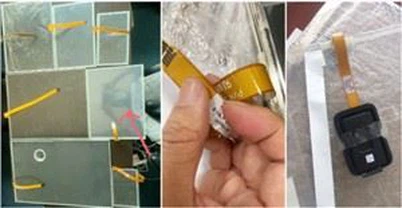
• The FPC flexible ribbon cable is loose, oxidized, broken, or making poor contact, preventing signals from reaching the corresponding pixel columns or rows.
• Desoldering, corrosion, or physical damage to the COF/COG bonding area (the connection point between the driver IC and the glass substrate). • Symptoms: Fixed vertical or horizontal lines; pressing the bezel may cause the display to change temporarily.
2. Driver IC / Circuit Damage
• Row/Column Driver ICs (Gate/Source Drivers) are burnt out, damaged by electrostatic discharge (ESD), or have aged.
• The T-Con timing control board is faulty, preventing the synchronized refreshing of entire rows or columns.
• Symptom: Fixed bright or dark lines spanning the entire screen that cannot be eliminated.
3. Internal Panel Circuitry Damage (Irreversible)
• Open circuits or short circuits within the glass substrate's data lines or gate lines (resulting from Array process defects, external physical pressure, or scratches).
• Failure of the TFT pixel array, rendering the transistors along an entire line unable to switch.
• Manifestation: A permanently fixed line appears; pressing on the screen or restarting the device has no effect.
4. Physical Damage / Environmental Impact
• Impacts, crushing, or drops resulting in fractures within the internal conductive layers.
• Water ingress, moisture, or corrosion leading to circuit short circuits or open circuits.
• High-temperature aging or electrostatic discharge causing breakdown of the drive circuitry.
5. External Signal / Graphics Card Issues (Prone to Misdiagnosis)
• Video cables (HDMI/DP/VGA) are loose, damaged, or have oxidized connectors.
• Graphics card VRAM or drivers are abnormal; GPU has a cold solder joint.
• Symptoms: Lines may flicker or shift in response to changes in the on-screen image; connecting an external monitor can help rule out this issue.
II. Quick Troubleshooting Methods
• Restart / Replace Cable / Connect External Monitor → Line Disappears: External signal or graphics card issue.
• Line remains fixed; changes occur when pressing the bezel: Ribbon cable or interface issue.
• Line remains permanently fixed and spans the entire screen: Internal panel damage or damaged driver IC (generally unrepairable).
III. Repair Feasibility
• Flex Cables/Connectors: Can be professionally reseated or replaced.
• Driver Board/T-Con: Can be replaced or repaired.
• Internal Panel Disconnections/Short Circuits: Cannot be repaired; screen replacement is required.